Installation Guide
Installing Live Chat for JSM on your Jira Cloud instance is a simple process.
Prerequisites
- You must be a Site Administrator in Jira Cloud to install applications.
- Your instance must include Jira Service Management (JSM) with at least one project that has the service portal enabled.
Installation from Atlassian Marketplace
- Go to the Atlassian Marketplace.
- Search for "Live Chat for JSM".
- Click "Install" and select your Jira Cloud site.
- Confirm the permissions requested by the application.
- The application will be installed automatically.
Post-Installation Verification
After installation, verify the following:
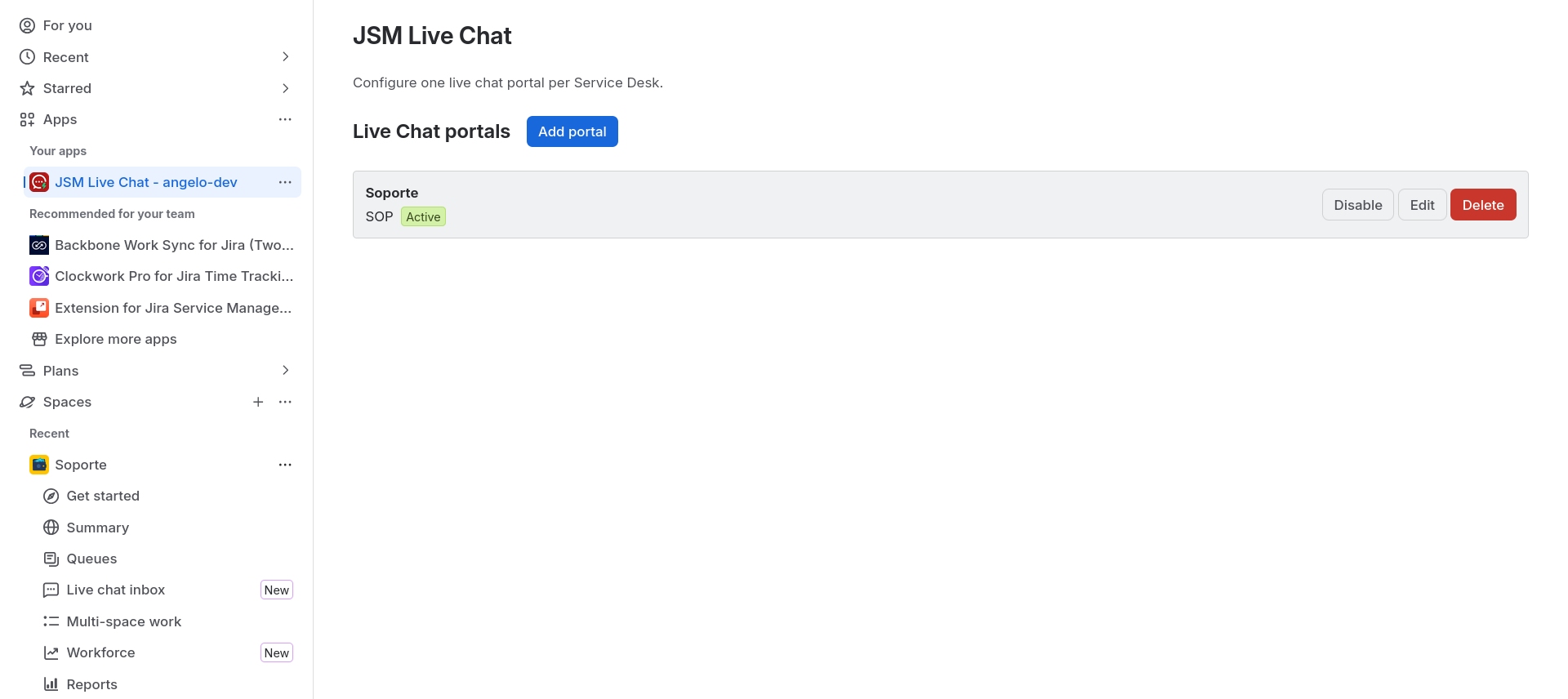
- The Live Chat for JSM app appears in the sidebar under Apps → Your apps.
- You can access it from the sidebar to configure portals.
- The chat widget appears only on enabled portals.
- The agent tray appears on the Live Chat page of JSM projects that have an enabled portal.
Configure a service portal
After installing the app, you need at least one configured portal for the widget to appear on the service portal:
- In the Jira sidebar, click Apps → Your apps → Live Chat for JSM.
- Click Add portal.
- Select a Jira Service Management project.
- Select the associated Service Desk.
- Select the Request Type customers will use to start the chat.
- Configure the welcome message and closing statuses.
- Check Active and save.
info
The Request Type must include the Description field. If it doesn't, the app will display a warning when you try to save.
Congratulations, the app is now installed and configured! You can continue with the Administrator Guide to configure additional portals.