Viewing Encrypted Data
By default, the value of an encrypted field is always hidden to protect the information. Jira Secure Fortress provides two secure, controlled ways for authorized users to temporarily reveal this value:
- The eye icon that appears next to each encrypted field in the issue view (new in 2.2.0).
- The Secure Fortress button in the actions menu, which opens a modal listing every encrypted field in the issue.
Both options are synchronized with each other and enforce the same permissions.
Reveal a value with the eye icon (new in 2.2.0)
In the issue view, you will find an eye icon next to each encrypted field. With a single click you can reveal or hide the field's value, with no need to open the Secure Fortress modal.
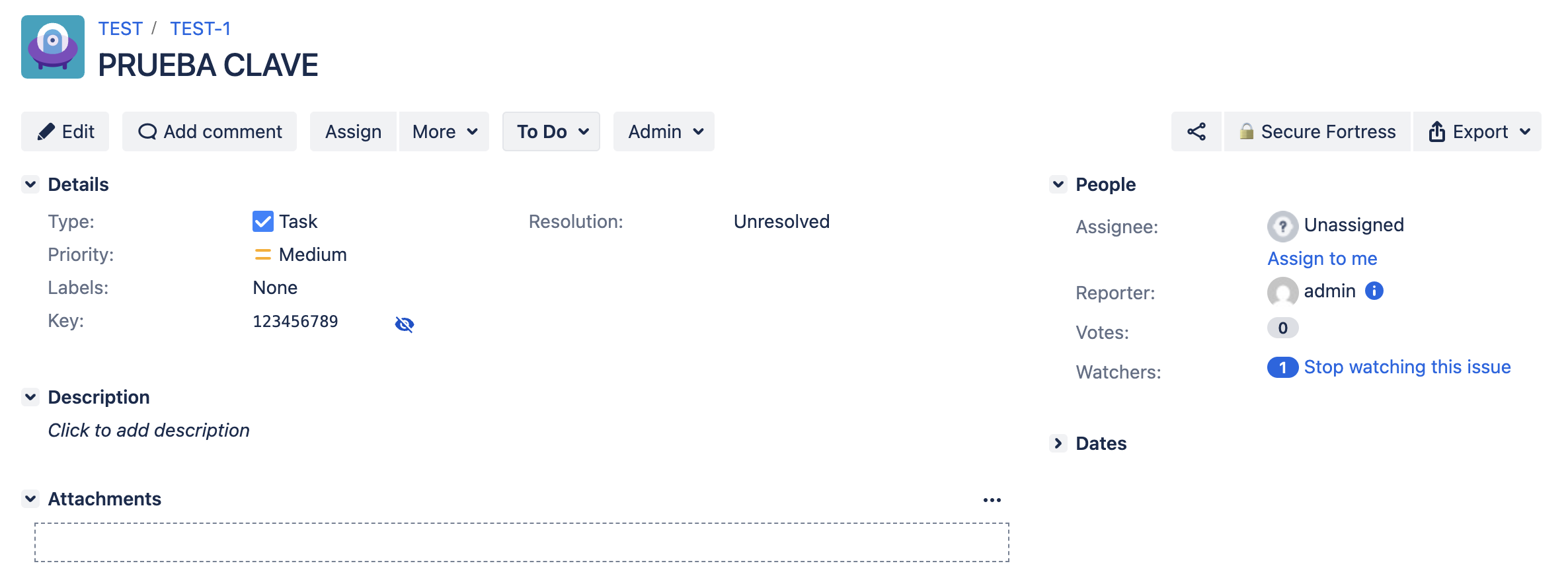
- Click the eye icon next to the encrypted value.
- The system checks your permissions on that field in the background.
- If you are authorized, the real value replaces the obfuscated text (
*******). - To hide it again, click the same icon once more.
The reveal state is synchronized with the Secure Fortress modal: if you reveal a field from the inline icon it will also appear as revealed in the modal, and vice versa.
Compatible with Jira's dark mode: revealed values inline and the modal both keep good contrast on Jira Data Center's native dark theme.
The "Secure Fortress" Button
In the issue view, you will find a button or link called Secure Fortress in the actions menu.

Clicking this button will open a modal listing all the encrypted fields present in that issue. This option is useful when you want to reveal several fields at once or manage the state of every encrypted field in the issue from a single place.
Revealing the Field's Value from the modal
Inside the modal, each encrypted field has a Show button.

- Click the Show button corresponding to the field whose value you want to see.
- The system will check in the background if you have the necessary permissions (configured by the administrator).
You can also use the Show all / Hide all buttons to apply the action to every field in the issue at once. The result is reflected both in the modal and in the inline eye icons.
If You Have Permission
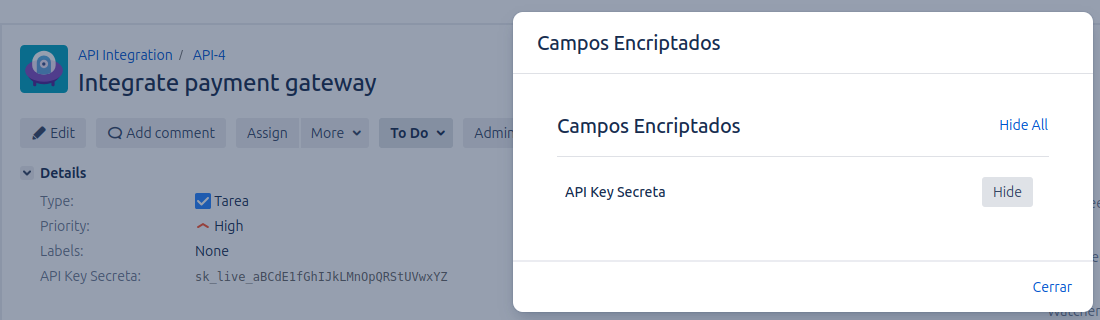
If you are authorized, the field's value in the issue view will be temporarily replaced with its real content.
- Before: The field showed
*******. - After: The field shows "This is the secret value".
If You Do NOT Have Permission
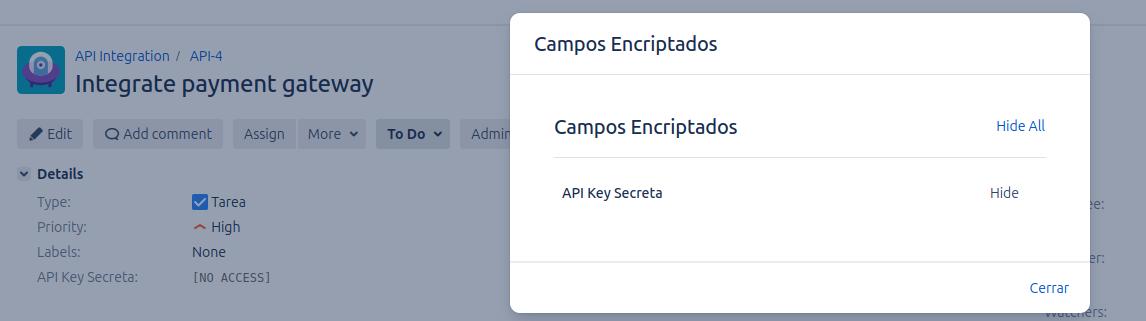
If you are not on the list of authorized users or groups, clicking "Show" (or the inline eye icon) will change the value in the issue view to [NO ACCESS]. This informs you that you do not have privileges to view that information.
Hiding the Field's Value
The data display is temporary and personal. To hide the value again, you can do one of the following:
- Click the eye icon next to the field in the issue view again.
- Reopen the Secure Fortress modal and click the Hide button that will now appear next to the field (or use Hide all).
- Refresh the issue page.
- Navigate away from the issue page.
Important: If you reveal a field's value, only you can see it. Other users viewing the same issue will continue to see the encrypted value (*******) until they perform the "Show" action themselves and have the permissions to do so.