Understanding the Display View
The Jira Issue Picker field presents the selected issues clearly in both the Jira issue view (for agents) and on a JSM portal request (for customers).
On the JSM Customer Portal
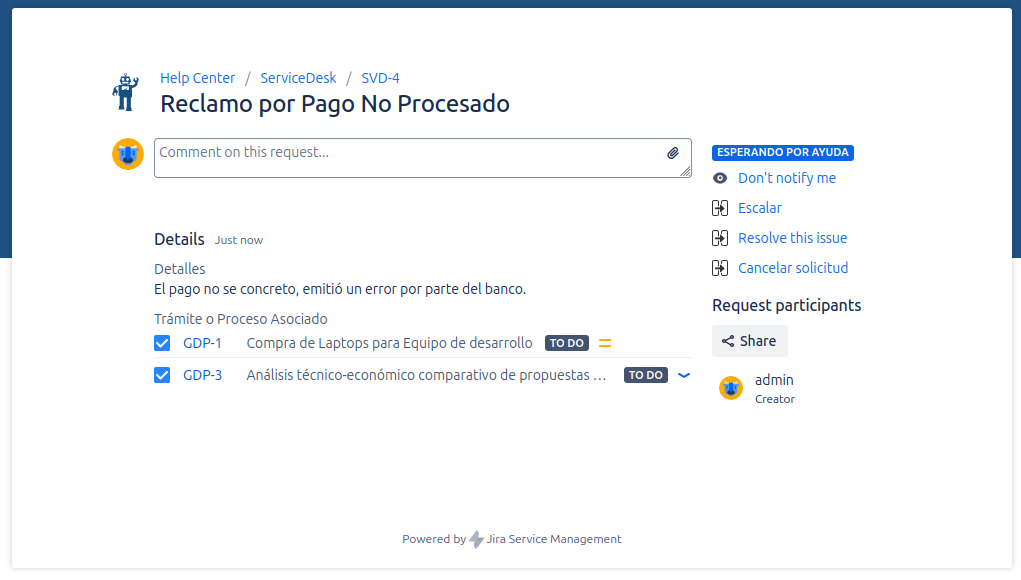
When a customer views a request in the portal, the selected issues are displayed in a simple, easy-to-read list format. Each issue will show:
- Issue Type Icon
- Issue Key (it's a link for agents to navigate to it)
- Issue Summary
In the Jira Issue View (For Agents)
When you are viewing a Jira issue (not editing it), the Jira Issue Picker field displays the selected issues in a clean and informative list.
Standard Display
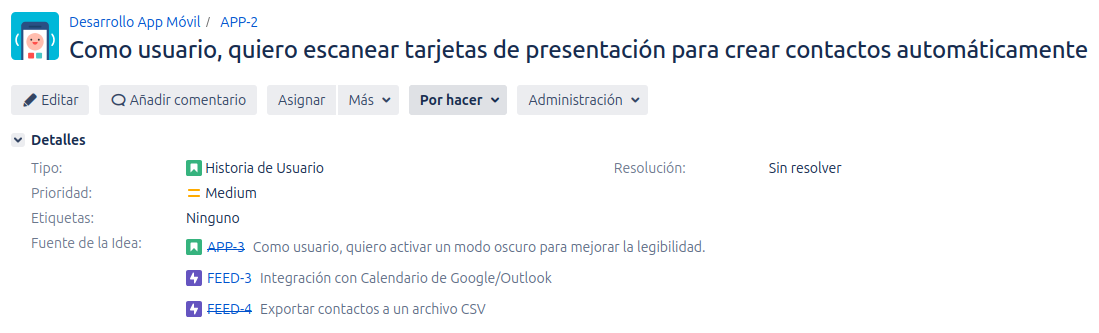
At a minimum, each selected issue will show:
- Issue Type Icon: A small icon representing the issue type (e.g., Story, Bug, Task).
- Issue Key: The unique key of the issue (e.g.,
PROJ-123). This is a clickable link that lets you navigate directly to that issue. - Summary: The title or summary of the issue.
If an issue has been resolved, its key will be displayed with a strikethrough to indicate it is completed.
Rich Information Display
Your administrator can configure the field to display additional information at a glance for each selected issue:
- Status: The current status of the issue is displayed as a colored lozenge. The color helps to quickly identify the issue's state:
- Green: For "Done" statuses.
- Blue: For "In Progress" statuses.
- Gray: For "To Do" statuses.
- Assignee: The avatar of the user currently assigned to the issue.
- Priority: An icon representing the issue's priority (e.g., Highest, High, Medium).
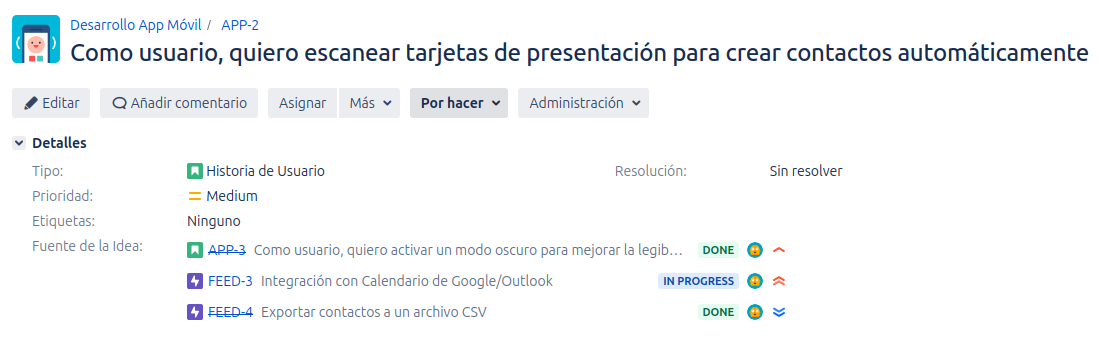
This rich display allows you to get important context about the linked issues without needing to open each one in a new tab.
Compact View for Long Lists
When a field configured in Multiple selection mode has more than 10 linked issues, the field automatically adopts a compact view to improve readability:
- By default, the first 10 issues are displayed.
- Below the list, a "Show all (N)" link appears, where N is the total number of linked issues.
- Clicking that link expands the list to show all issues, along with a "Show less" link to collapse the view again.
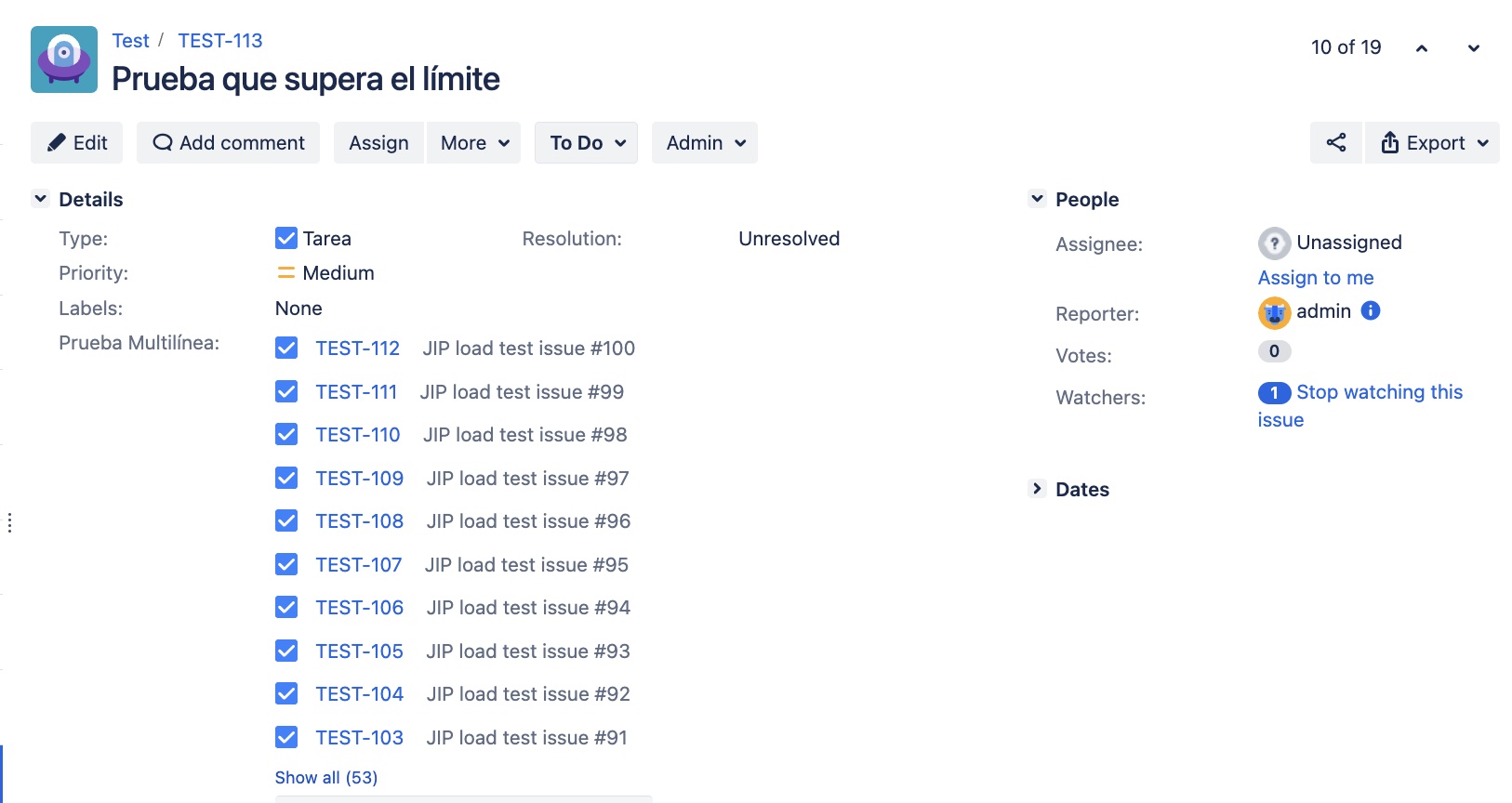
The compact view is only activated when there are more than 10 linked issues. The full list is always accessible with a single click.
Totalizer Bar
If your administrator has enabled totalizers for the active context, you will see an additional row displaying the sum of the configured fields across all linked issues. Depending on the configuration, this row may appear above or below the issue list.
The format of each value depends on the field type:
- Custom numeric fields: The sum is displayed as stored in Jira.
- Time tracking fields (Original Estimate, Time Spent, Remaining Estimate): Values are expressed in hours (e.g.
50h,40.5h). Issues with no recorded value count as zero.
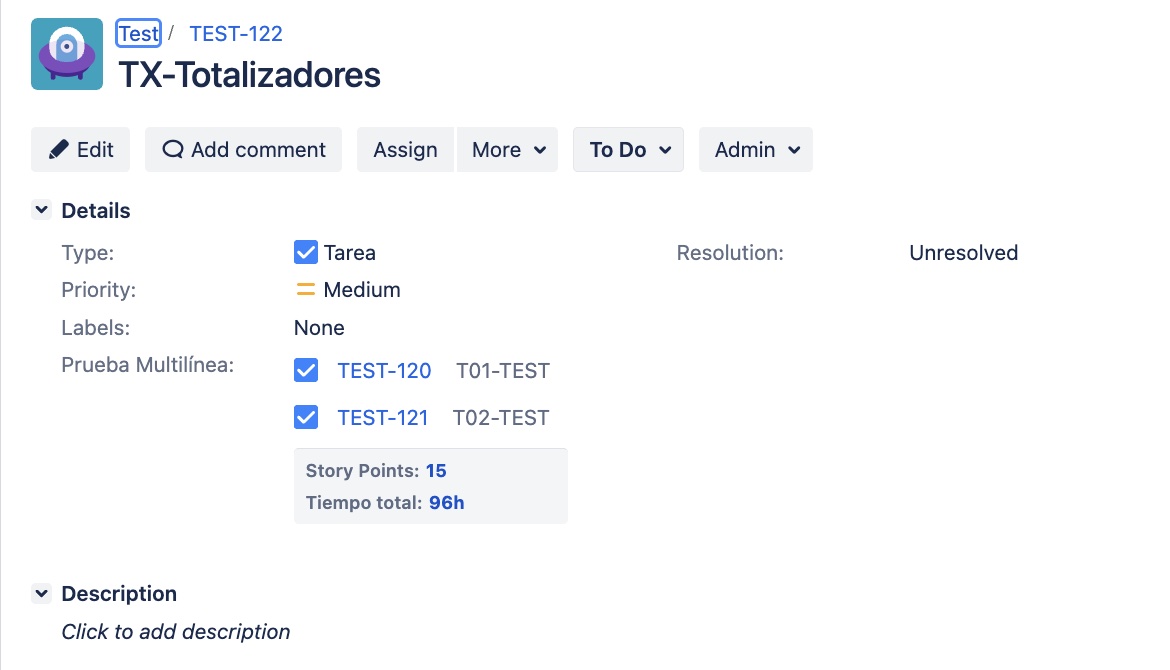
Totalizers always reflect the sum of all linked issues, even when the list is in compact view.