The Capacity Planner View
The Capacity Planner view is the central visualization tool for team leaders and project managers. It offers a complete overview of the workload, availability, and utilization of a team's members over time, allowing for informed decisions about task allocation and future work planning.
Accessing the Planner
There are two ways to access the tool:
1. From a Jira Project
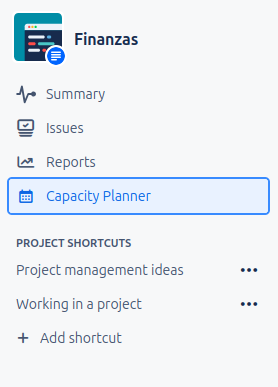
Navigate to your Jira project. If the administrator has enabled the plugin for your project, you will find a tab called Capacity Planner in the left navigation menu.
2. From a Jira Dashboard (v1.1.0+)
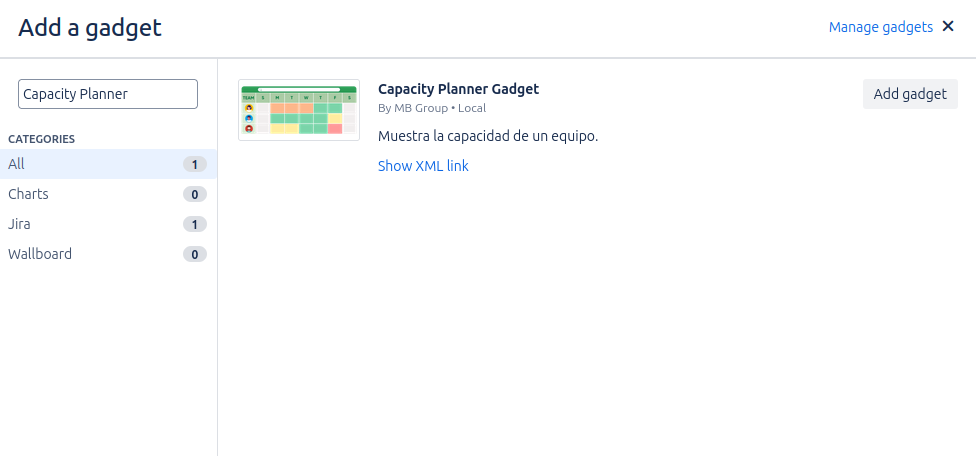
If an administrator has configured the Capacity Planner Gadget on one of your dashboards, you can view and use the planner directly from the dashboard.
Exploring the Interface
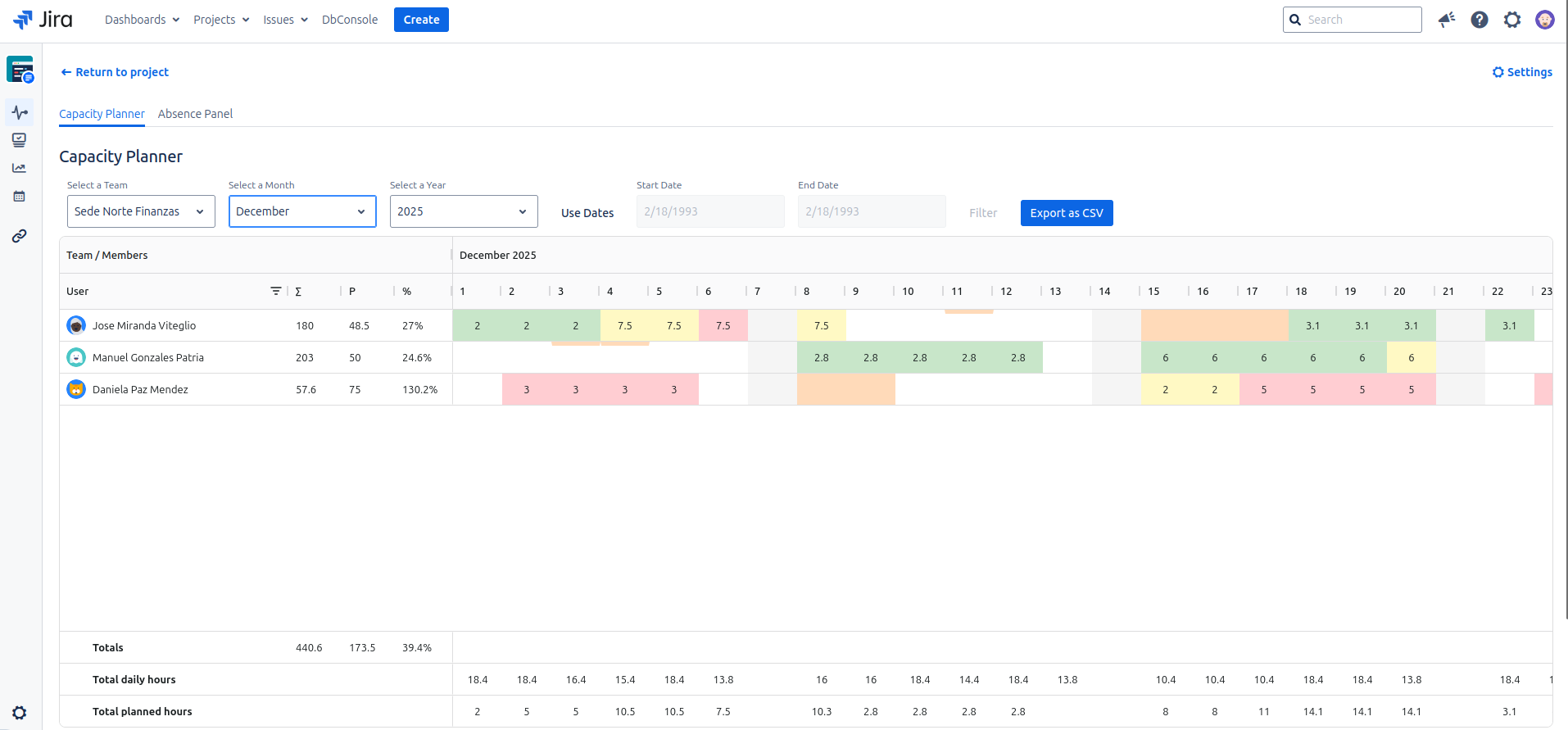
The interface is divided into two main areas: the controls and the planning grid.
1. Planner Controls
At the top, you will find the filters to define the context of your analysis:
- Team Selector: Choose the team you want to analyze.
- Date Filters: The date control has been redesigned to offer greater flexibility.
- Month/Year Mode: This is the default mode. It allows you to navigate through time using the month and year selectors.
- Date Range Mode: Click Use Dates to activate this mode. It allows you to select a start and end date, showing in the grid only the days within that specific range. To return to the previous mode, simply click Back to Month/Year or refresh the view.
- Export as CSV: Click this button to download the current grid view as a
.csvfile, which can be opened in applications like Excel or Google Sheets.
Each time you modify a filter, the planning grid will update automatically.
2. The Planning Grid
This is the visual matrix that crosses team members (rows) with days (columns).
Workload Cells
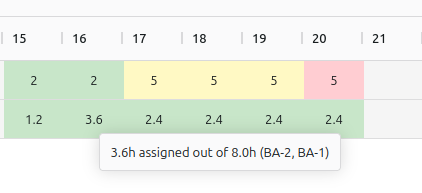
The color of each cell acts as a workload "traffic light":
- Green: Healthy workload (below availability).
- Amber/Yellow: Workload nearing the limit.
- Red: Over-allocation. The assigned hours exceed the available capacity.
Status Cells
- Gray: Non-working day (weekend or holiday).
- Pastel Orange (full background): Full-day absence. Availability is zero.
- Top Orange Bar: Partial absence. The day's availability has been reduced by a number of hours.
- No color: Working day with no load.
Tooltips: Information at a Glance
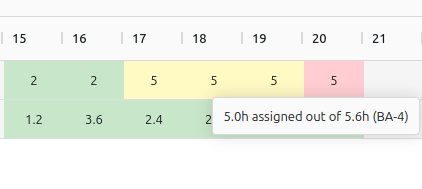
Hover over any cell to get a tooltip with crucial details:
- On a cell with hours: You will see the assigned vs. available hours and a list of the issues contributing to that load.
- On an empty cell: You will see the total available hours.
- On a status cell: It will confirm the reason (e.g., "Non-working day", type of absence).

3. Summary and Totals
The bottom and right side of the grid offer aggregated data for a macro analysis:
- Totals per Day Row: Sum of assigned and available hours for the entire team on each day.
- Totals per User Columns: Total sum of assigned and available hours for each person in the visible period, along with a utilization percentage.