Traffic Light KPI Custom Field
The Traffic Light KPI custom field lets you store a numeric value per issue and display it as a visual indicator in three colors — 🔴 red, 🟡 yellow and 🟢 green — resolved from configurable thresholds per context.
It is designed to represent KPIs, service levels, response times, completion percentages, risks or any other indicator where the numeric value matters but, above all, where it is important to communicate at a glance whether the situation is good, intermediate or critical.
This section describes how to create the field, configure thresholds for each context and understand the indicator's behavior.
Create the Traffic Light field
-
Navigate to Jira Administration > Issues.
-
In the left sidebar, under Fields, click Custom fields.
-
Click Add custom field in the upper-right corner.
-
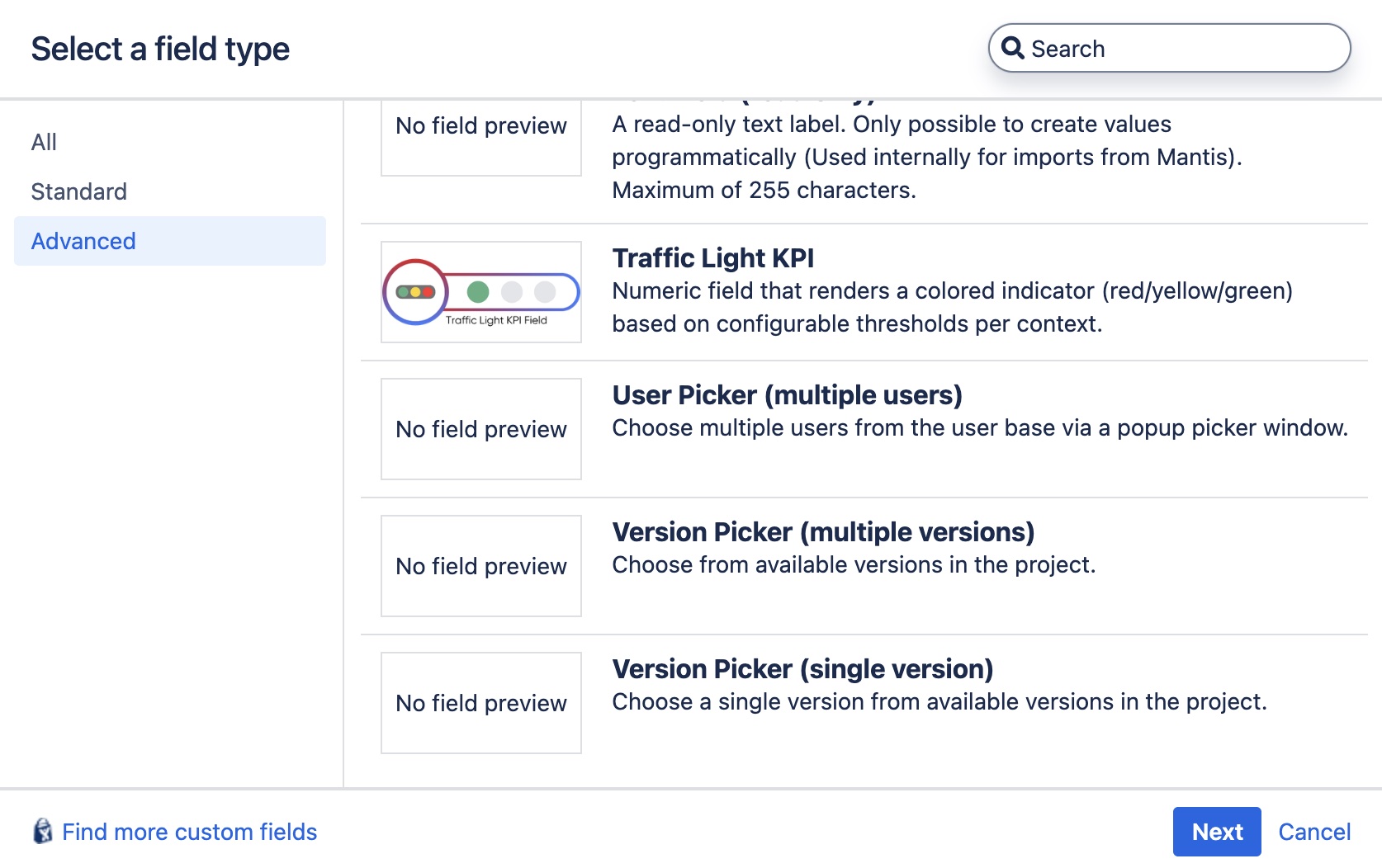
On the "Select a field type" screen, open the Advanced category and select Traffic Light KPI. Click Next.
💡 You will recognize it by its description: "Numeric field that renders a colored indicator (red/yellow/green) based on configurable thresholds per context." and by its preview image (the three traffic-light bulbs).
-
Name and Description:
- Enter a Name for the field (for example, "Compliance level", "Project risk", "Service SLA").
- Add an optional Description. This text will appear below the field to guide users.
-
Click Create.
-
Associate it with screens: Jira will ask you to select the screens on which the field will appear (creation, edit, view). Check the ones that apply and click Update.
From this point on, the field will be available on the configured screens. However, the indicator will not display colors yet: to enable them you must configure the thresholds on each field context (next section).
While a field context has no thresholds defined, the stored numeric values are rendered in gray (no state). This is intentional: it avoids communicating a color that could lead to wrong interpretations until the administrator defines the business rule.
Configure thresholds (per context)
The Traffic Light field thresholds are always tied to the active configuration context (FieldConfigContext) of the field. This means you can define different thresholds per project or per issue type, according to the contexts you have created on the field.
Thresholds model
Each context requires two numeric values and an interpretation mode:
- Red max — Maximum value considered red. Any value less than or equal to this threshold renders a red indicator.
- Yellow max — Maximum value considered yellow. Values greater than
Red maxand less than or equal toYellow maxrender yellow. Values greater thanYellow maxrender green. - Lower is better — Optional checkbox that inverts the color assignment when the KPI works the other way around (a low value indicates better performance).
The rule applied in the default mode (higher is better) is:
| Issue value | Resulting color |
|---|---|
value <= Red max | 🔴 Red |
Red max < value <= Yellow max | 🟡 Yellow |
value > Yellow max | 🟢 Green |
| Empty value / context without thresholds | ⚪ Gray (no state) |
When Lower is better is enabled, the assignment is inverted without changing the order of the thresholds:
| Issue value | Resulting color |
|---|---|
value <= Red max | 🟢 Green |
Red max < value <= Yellow max | 🟡 Yellow |
value > Yellow max | 🔴 Red |
| Empty value / context without thresholds | ⚪ Gray (no state) |
Enable it on KPIs where a lower value indicates a better result: resolution time, number of incidents, open defects, average response time, etc. In those cases, the indicator will show green for low (desirable) values and red for high (critical) values, without having to manually invert the meaning of the thresholds.
Invariant
The editor enforces: Red max < Yellow max. If you enter values that do not respect this relation, the form will reject the save with an error message.
Steps to configure the thresholds
- Navigate to Jira Administration > Issues > Custom fields.
- Locate the Traffic Light field you created and click the actions icon (
⋯) > Configure. - On the field configuration page you will see the list of associated contexts. For each context an additional row called Thresholds is contributed by this add-on.
- On the Thresholds row:
- If the context has no thresholds yet, you will see the text "No thresholds configured. Values render gray."
- If thresholds are already defined, you will see a summary such as "Red max: 30 — Yellow max: 70".
- Click Edit to the right of the Thresholds row.
- In the Edit Traffic Light KPI Thresholds form:
- Enter the value for Red max.
- Enter the value for Yellow max.
- Check the Lower is better box if your KPI works the other way around (low values = good performance).
- Click Save.
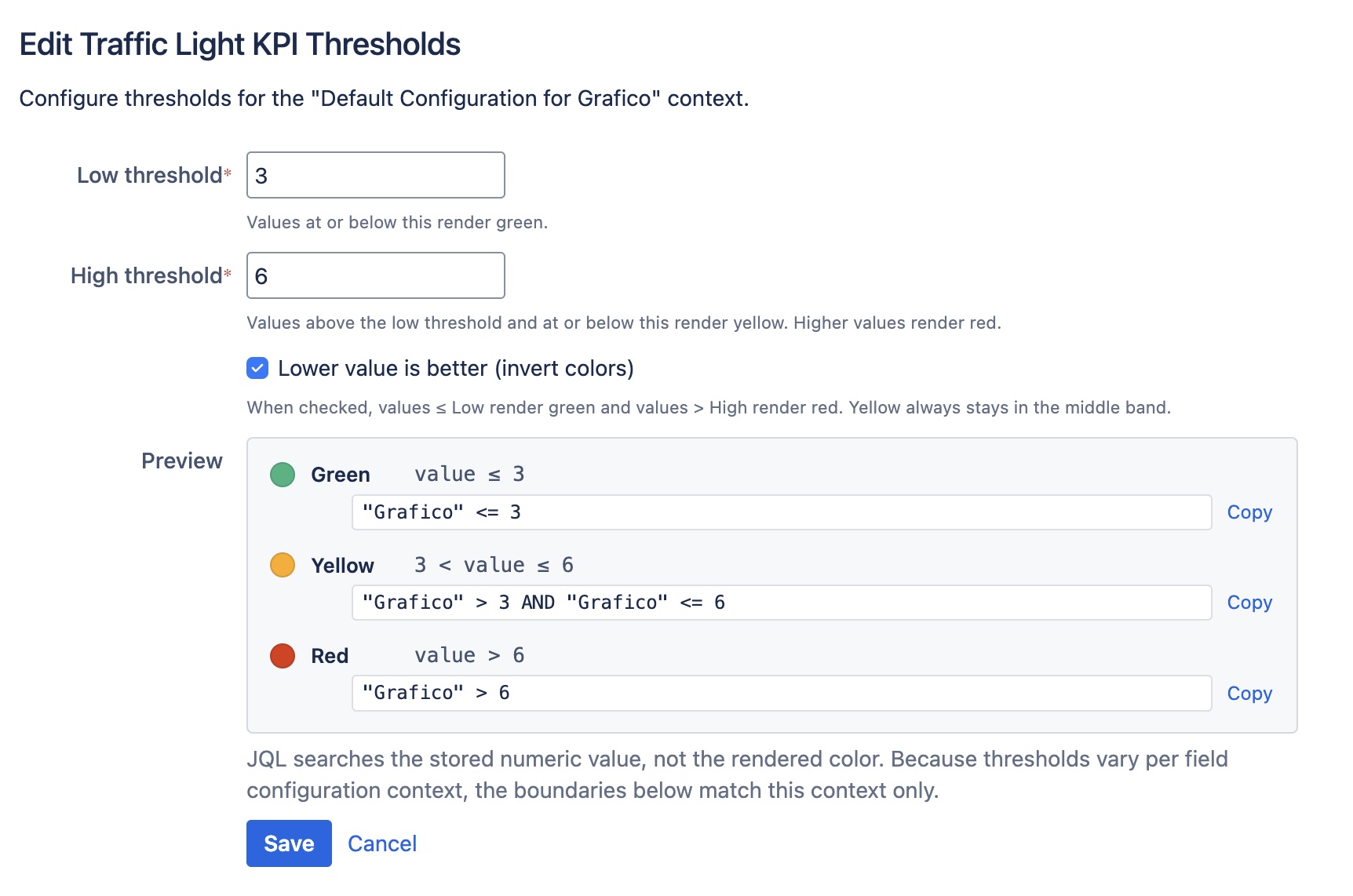
After saving, you will return to the field configuration page and the Thresholds row will show the new summary. The summary also indicates the active mode (for example, "Red max: 30 — Yellow max: 70 — Lower is better"). Issues associated with that context will start to render the indicator with the corresponding colors.
Example: compliance KPI (0–100)
Consider a Traffic Light field called "Compliance level" expressed as a percentage:
- Red max:
30→ from0to30is considered critical (red). - Yellow max:
70→ from31to70is considered at risk (yellow). - Greater than
70→ adequate compliance (green). - Lower is better: disabled (higher values are better).
If the same field is reused across several projects with different tolerances, just create one context per project and define independent thresholds in each one.
Example: average resolution time ("lower is better" mode)
For a Traffic Light field called "Resolution time (hours)", where a low value is desirable:
- Red max:
4→ from0to4hours is considered excellent (green). - Yellow max:
12→ from5to12hours is considered acceptable (yellow). - Greater than
12→ slow response (red). - Lower is better: enabled.
Note that the thresholds keep the Red max < Yellow max order; the semantics change is provided by the Lower is better option.
Possible validation errors
The editor validates input and shows specific messages when:
- Any of the fields is empty → "This field is required."
- The entered value is not a valid number → "Please enter a valid number."
Red maxis greater than or equal toYellow max→ "Red max must be strictly less than Yellow max."- The context cannot be resolved (uncommon case; usually happens when opening the form from a stale URL) → "The field configuration could not be located. Please return to the custom field configuration page and try again."
Rendering on the issue view
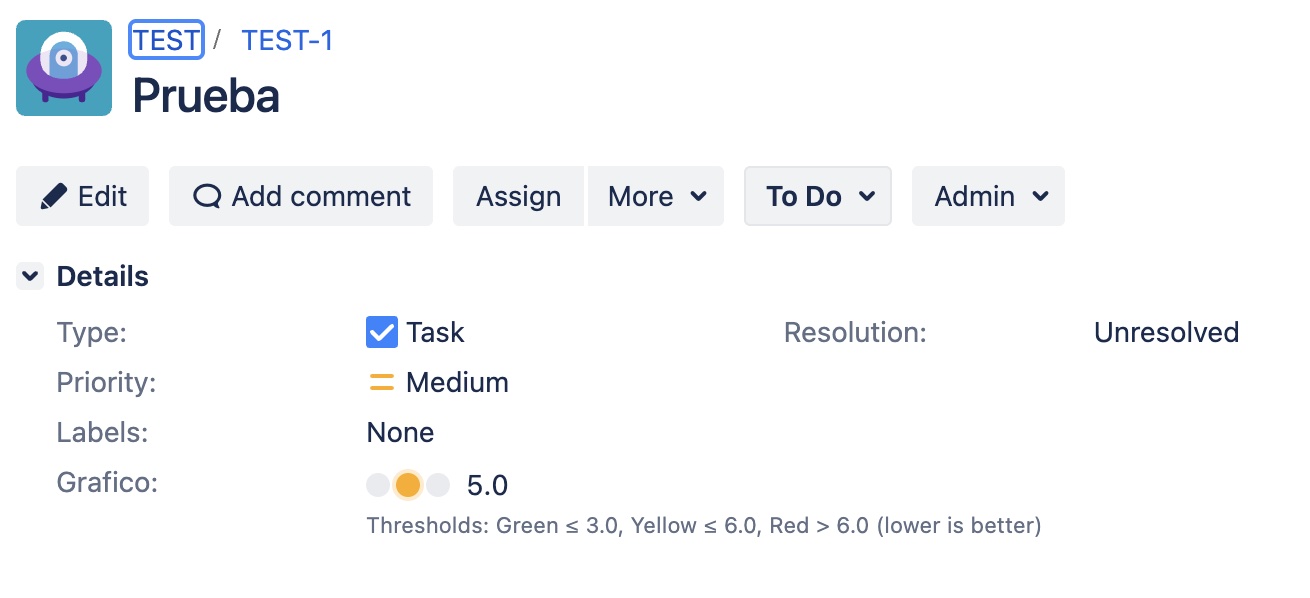
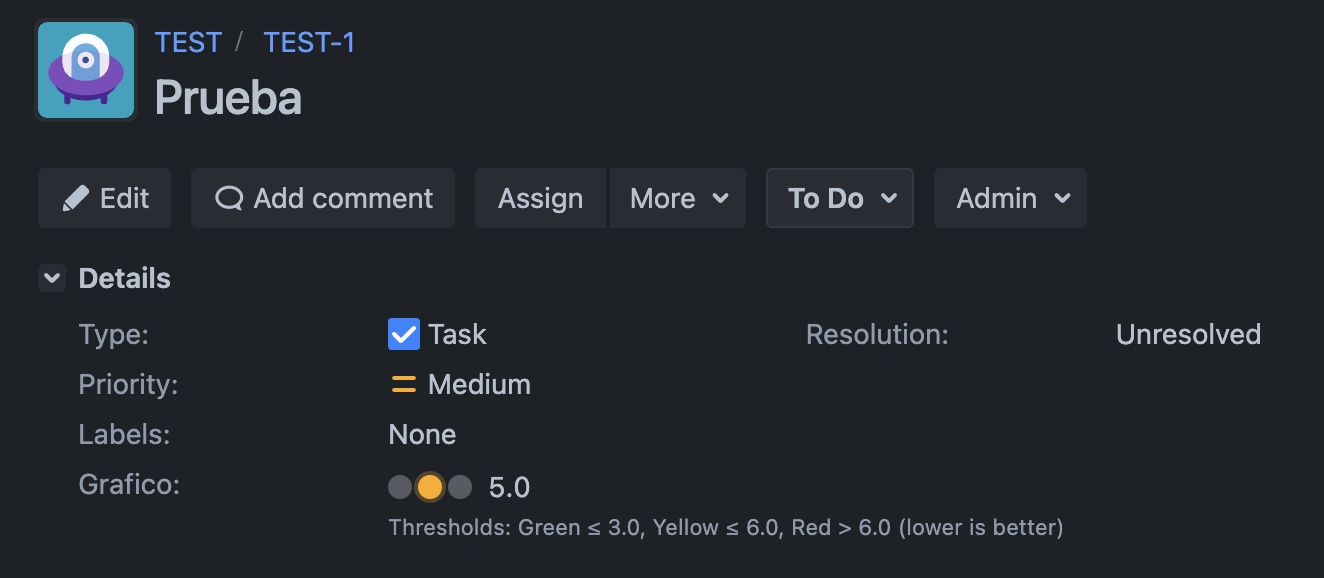
When an issue has a numeric value stored in the Traffic Light field and its context has thresholds defined, the add-on renders a three-bulb indicator (green, yellow, red) along with the field's numeric value. The lit bulb reflects the color resolved by the thresholds and an accessible aria-label describes the state for screen readers.
The indicator appears in:
- The issue detail view (lateral field panel).
- The column view of the issue navigator, gadgets and boards (compact mode, ideal for listings).
Thresholds legend on the issue view
Starting with this version, the issue detail view includes a descriptive legend below the indicator showing the ranges configured in the context. The legend automatically adapts to the active mode:
- In the default mode, it shows the increasing ranges (
≤ Red maxin red,Red max < … ≤ Yellow maxin yellow,> Yellow maxin green). - In Lower is better mode, the ranges remain the same but the color assignment reflects the inversion.
The legend is rendered with texts in the user's language and respects Jira's theme (light and dark mode).
Hover tooltip
When hovering over the color indicator, a tooltip is shown with the exact range the issue value belongs to (for example, "Red: ≤ 30" or "Green: > 70"). This allows interpreting the state at a glance without having to open the field configuration.
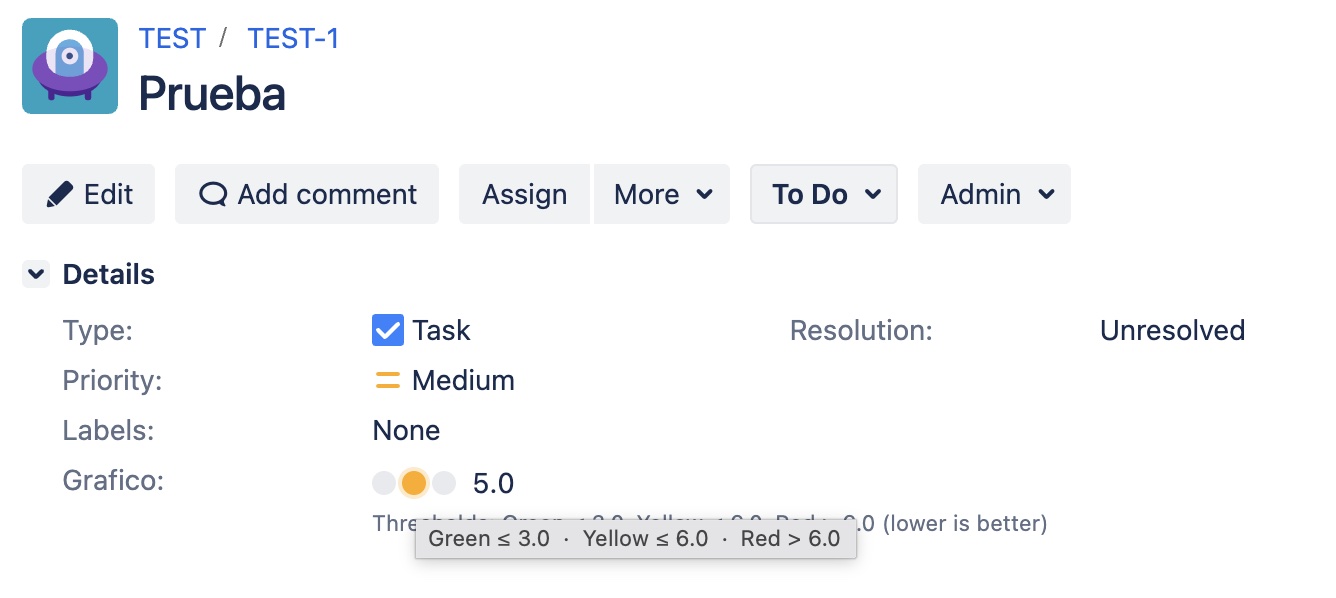
The legend, the tooltip and the indicator's numeric value are rendered with accessible colors in both Jira's light and dark themes. The contrast of the number remains readable in both modes.
Search support (searcher) and JQL
The Traffic Light field is registered with Jira's standard Number Range Searcher, which enables searches and filters by numeric range. This allows you to:
-
Filter issues by value from the basic issue search (equal, greater than, less than, etc.).
-
Use the field in JQL queries, for example:
"Compliance level" < 30
"Compliance level" >= 70 AND project = "ACME"
where
Compliance levelis the name you assigned to the field when creating it.
JQL queries operate on the stored numeric value, not on the resolved color. To list, for example, "all red issues", combine JQL operators with the same context thresholds: "Compliance level" <= 30.
Values are indexed automatically as issues are created or updated; no additional configuration is required.
Internationalization (i18n)
All administrative and UI texts of the Traffic Light field (field name, configuration row, thresholds form, error messages and accessible labels) are internationalized and respect the Jira user's language, with English and Spanish support included in the package.