Using the Field
Interacting with the Dynamic Work Item Picker field is designed to be a quick and intuitive process, allowing you to link Jira Work Items without interrupting your workflow.
Searching and Selecting Work Items
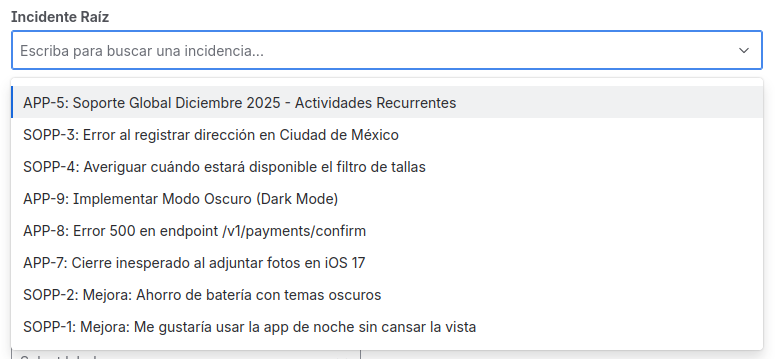
When you encounter an Dynamic Work Item Picker field on an Work Item, simply click on it to activate it.
- To search for a Work Item: Start typing the Work Item key (e.g.,
PROJ-123) or any part of its summary. The field will show you a list of matching results in real-time. The search activates from the first character you type, so you do not need to type more than one letter to see results. - To select a Work Item: Click on the desired Work Item from the results list.
If the field is configured for multiple selection, you can repeat the process to add as many Work Items as you need. To remove an already selected Work Item, simply click the "x" next to its name.
Invalid Work Item Alert
If an administrator changes the JQL filter of an Dynamic Work Item Picker field that already contained values, it is possible that some of the selected Work Items no longer comply with the new rules.
In this case, you will see a warning above the field that will inform you which Work Items are no longer valid.

- What can you do?
- You can remove the invalid
Work Itemsand replace them with others that do comply with the new rules.
- You can remove the invalid
If you try to select a new Work Item that does not comply with the JQL, the field will not allow you to save it and will show you the same warning message.
Viewing Information
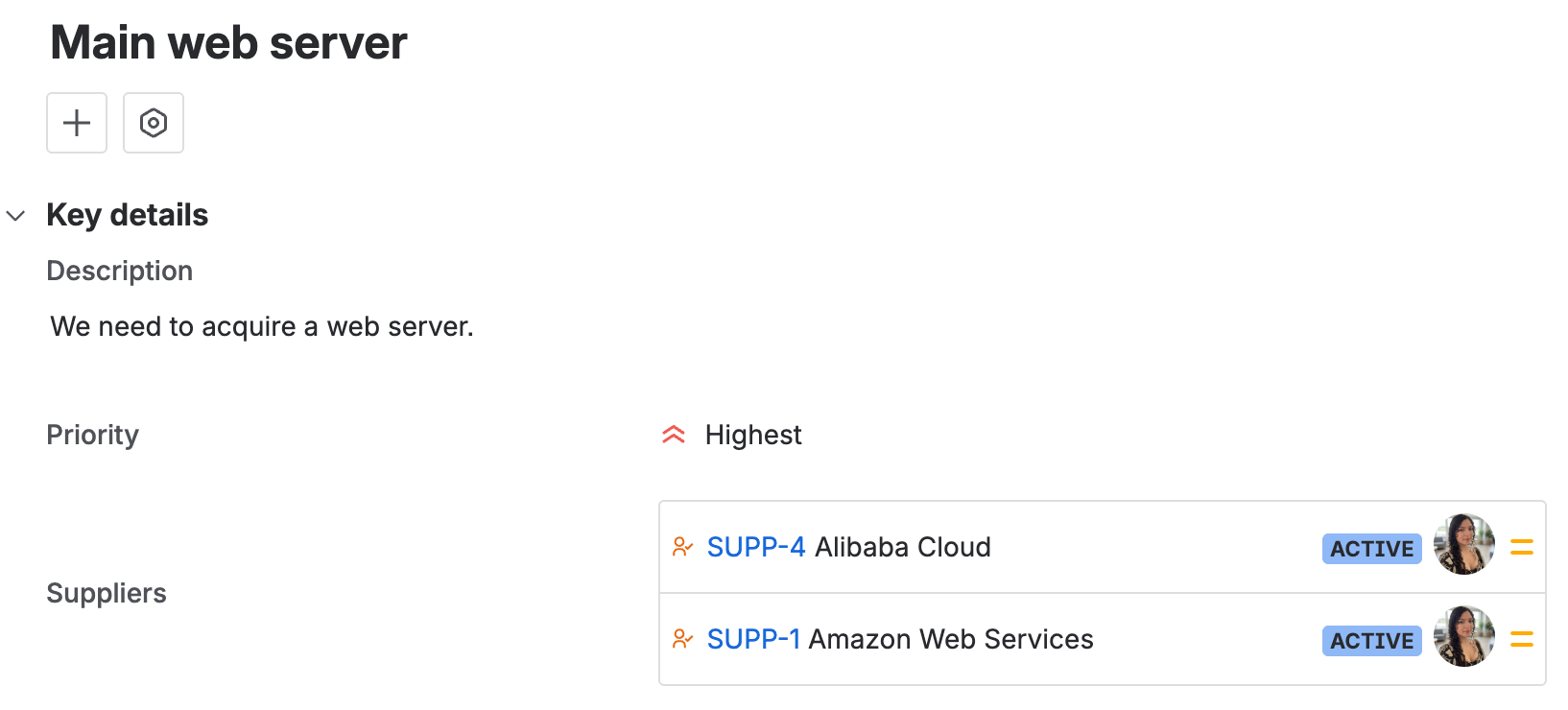
Once you have selected one or more Work Items, the field will display them in a clear and enriched way. Depending on how the administrator has configured the View Tab, you will be able to see not only the key and summary of the Work Item, but also additional information such as:
- The current assignee (including their avatar).
- The status it is in.
- The priority icon.
This visualization gives you valuable context directly from the Work Item you are working on.
Collapsed View in Multiple Selection
When the field is configured for multiple selection and has more than 10 linked Work Items, the view displays the first 10 by default to keep the interface compact.
- If there are more than 10 Work Items, you will see the link Show all (N) at the bottom of the list, where
Nis the total number of linked Work Items. - Clicking Show all (N) expands the list to show all linked Work Items.
- A Show less link then appears to collapse the list back to the compact view.
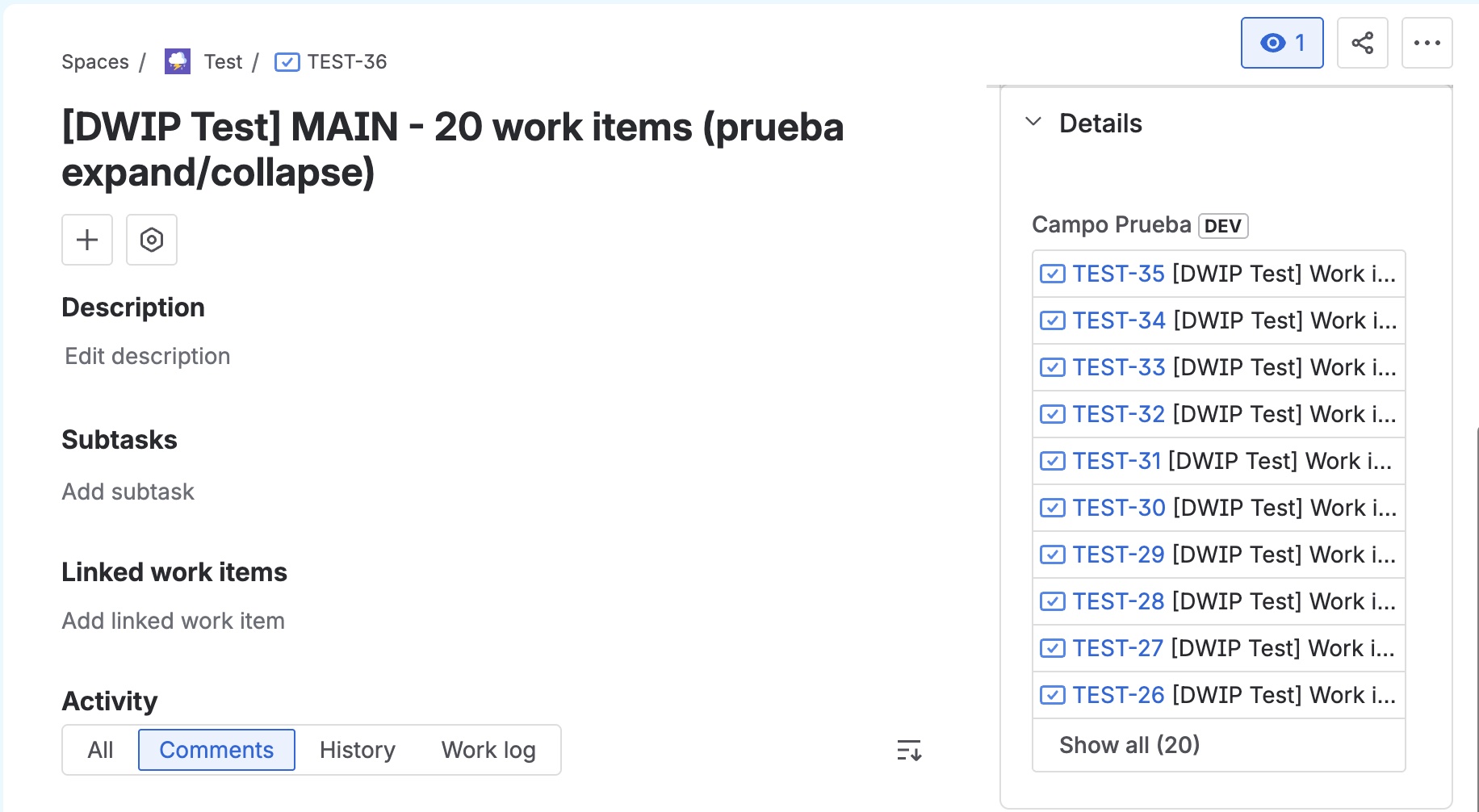
This collapsed view only affects the field display. Editing the field and searching for Work Items are not affected by this behavior.
Work Item Comments
If the administrator has enabled the Comments toggle in the View tab, you will see a 💬 button on the right side of each row, next to the open-issue button (↗). This lets you view that work item's comments without leaving the issue you are working on.
Opening the Comments Modal
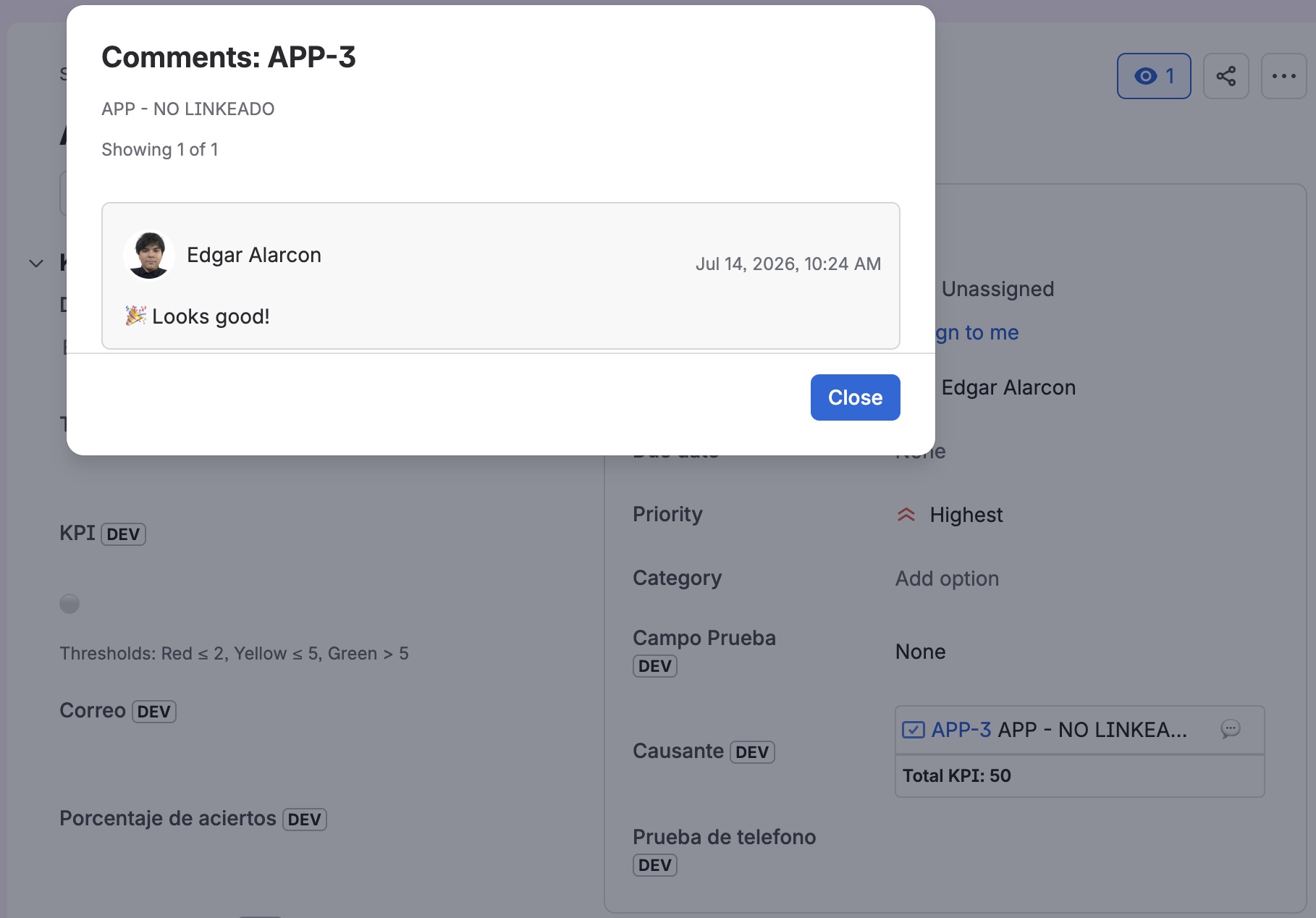
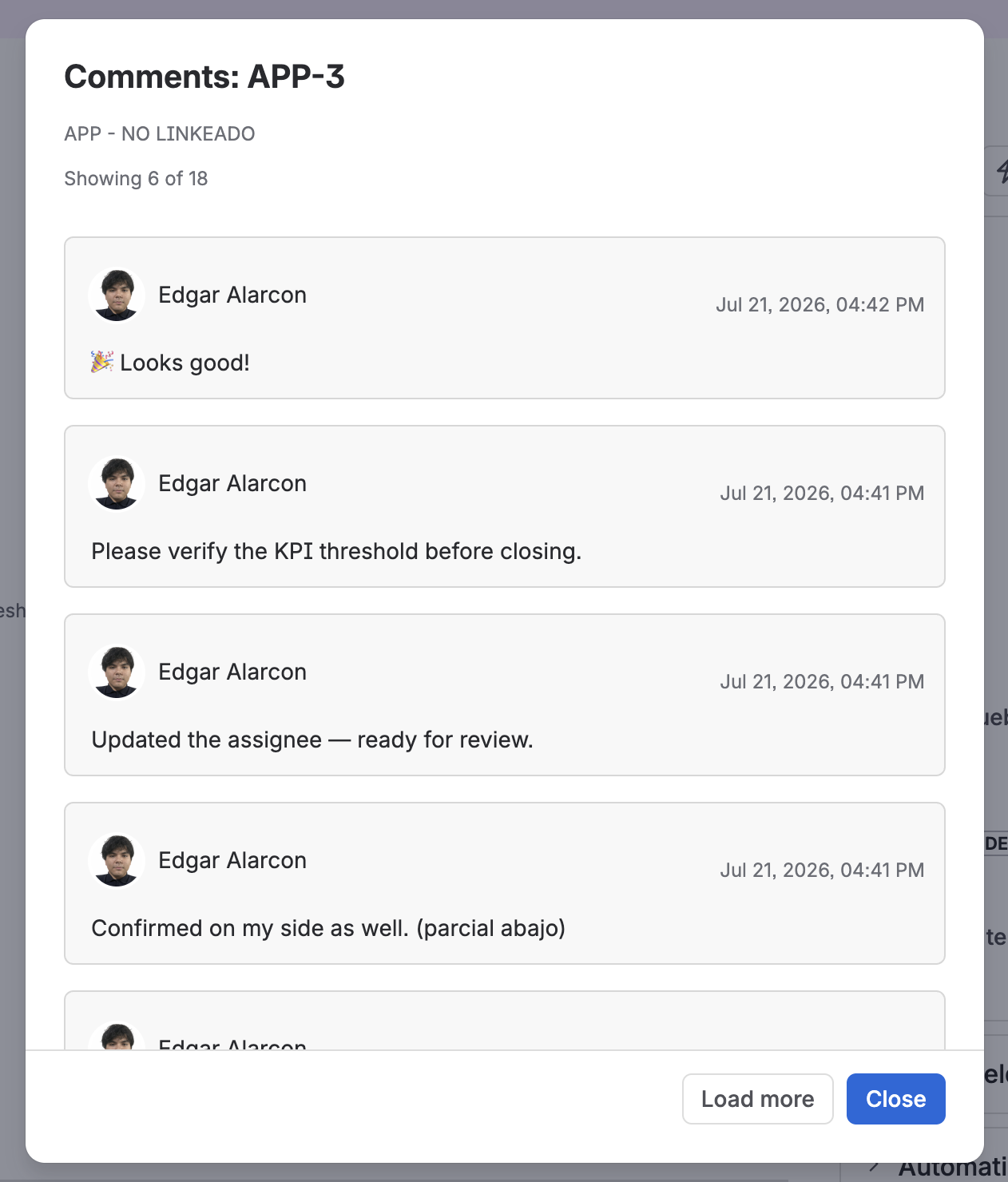
Click the 💬 button on any row to open that work item's comments modal. The modal shows:
- The issue summary of the linked work item as a subtitle.
- Each comment with the author's avatar and name, the publication date, and the body in enriched format: bold text, lists, tables, info panels, inline code, and emojis.
If the comments are still loading, you will see a loading indicator. If the ticket has no comments visible to you, the modal displays No comments.
Comment Pagination
The modal loads the 3 most recent comments when opened. If more are available, a Load more button appears along with the Showing X of Y counter. Click Load more to load the next page.
Unread Comments Indicator
If there are comments published after the last time you opened the modal for that ticket, the 💬 button appears highlighted in blue. This tells you there is new activity on that work item. Once you open the modal, the state updates and the icon returns to its normal appearance the next time you view the field.
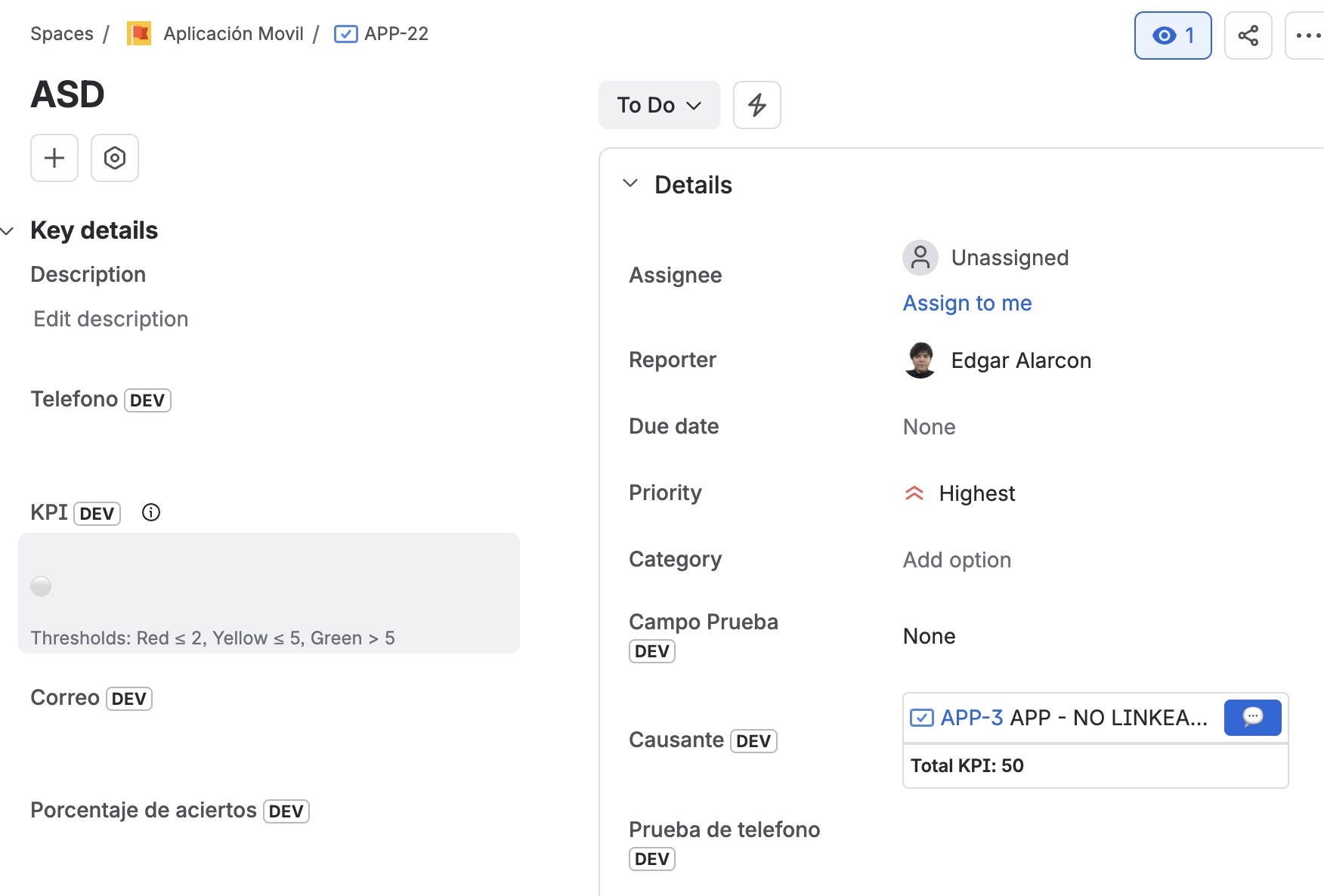
The "comments seen" state is saved independently per user and per ticket. Each user has their own unread indicator.
Visual Semantics
The display of selected Work Items has been enhanced to give you more context at a glance:
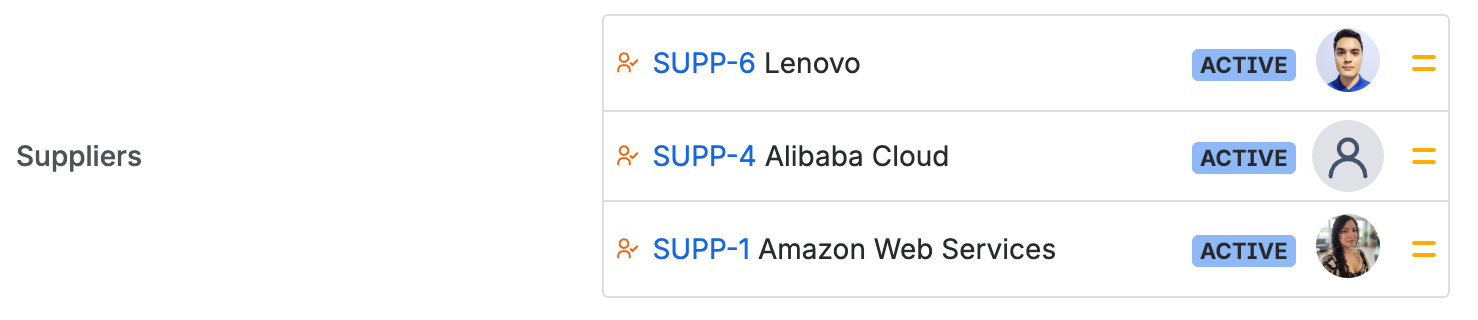
- Assignee Avatar: If the field is configured to show the assignee, you will see their avatar next to their name. If the ticket is unassigned, a generic silhouette icon is displayed.
- Status Color: The status of an
Work Itemis now displayed with the color of its status category in Jira (gray, blue, or green), allowing you to quickly identify if anWork Itemis to-do, in progress, or done. - Strikethrough for Resolved Work Items: The key of an
Work Item(e.g.,SUPP-3) will appear struck through if theWork Itemhas a resolution set.
Incoming Links Panel
The Dynamic Work Item Picker field not only allows you to link Work Items, but it also gives you visibility into which Work Items are linking to you.
When an Work Item is selected in an Dynamic Work Item Picker field anywhere in Jira, an Incoming Links panel will appear in the view of the linked Work Item.
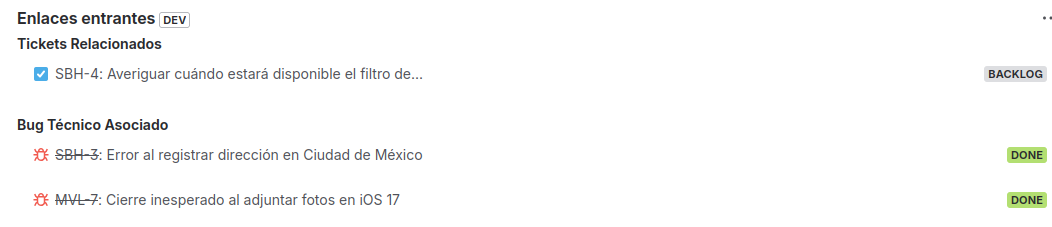
This panel groups the Work Items under the header of the Dynamic Work Item Picker field that is linking them, and it shows you the following information:
- Work Item key: A direct link to the
Work Itemthat is linking to you. - Work Item summary: To give you context about what the
Work Itemis about. - Status: The current status of the
Work Item.
The panel title is customizable. An administrator can define it from the View tab of the field configuration using the Incoming links title option. If no title is configured, the panel will display the field name as the header.
This gives you a 360-degree view of your dependencies without having to navigate to other screens.