Fields Dashboard
The Dynamic Work Item Picker fields dashboard centralizes the management of all your custom fields of this type in one place. From here, you can quickly see all existing fields, their key information, and access their configuration with a single click.
Access to the dashboard and field configuration write operations requires Jira Administrator permission (ADMINISTER). From version 5.9.0 onward, this restriction also applies to configuration write operations invoked directly from the Jira administration interface.
How to access the dashboard?
- From the main Jira navigation, go to Apps.
- In the dropdown menu, select Dynamic Work Item Picker.

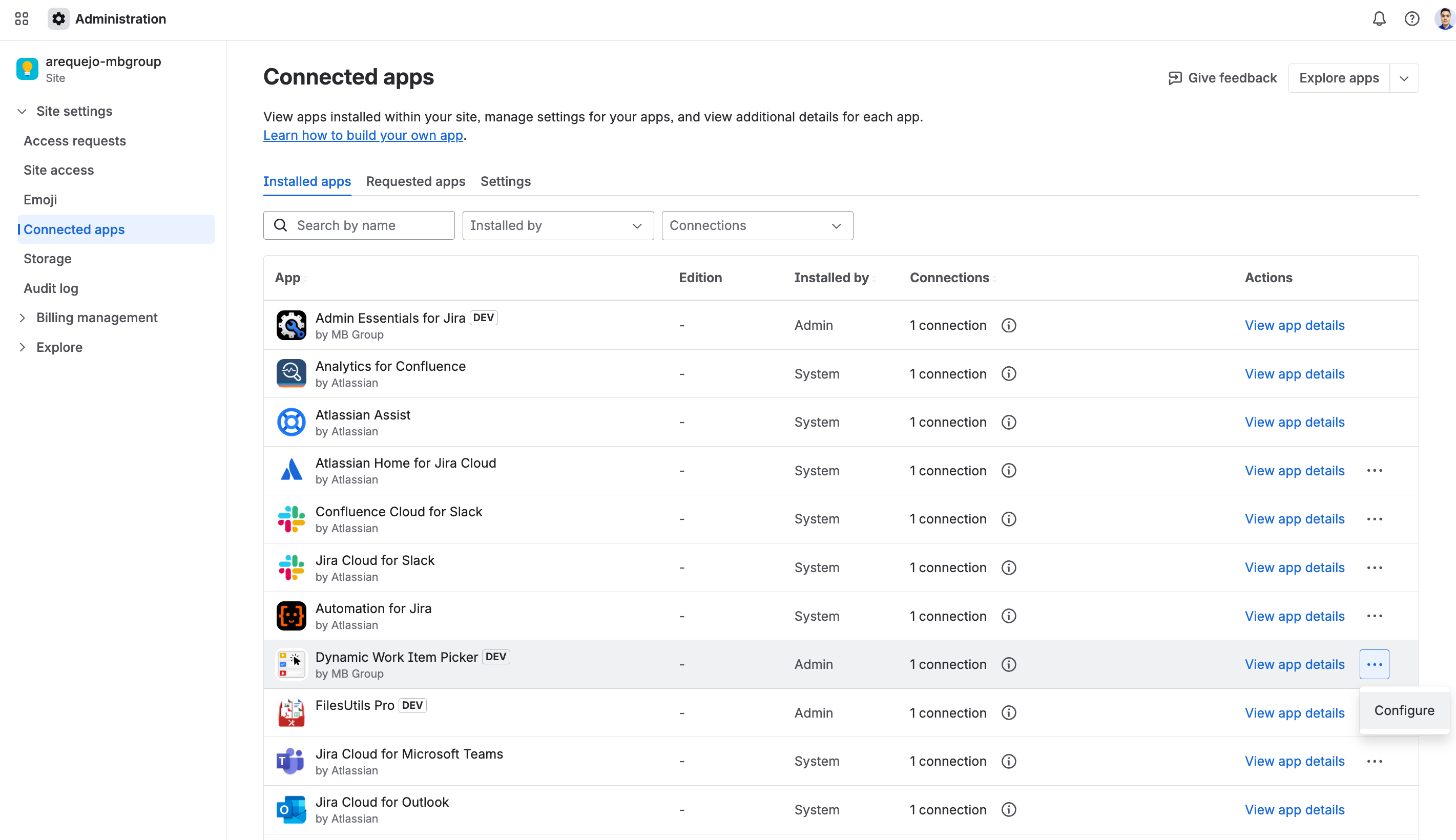
You can also reach the same dashboard from Connected apps:
- Open Connected apps from Jira administration.
- Find Dynamic Work Item Picker and click Configure.
- The same administration dashboard will open without changing resources.
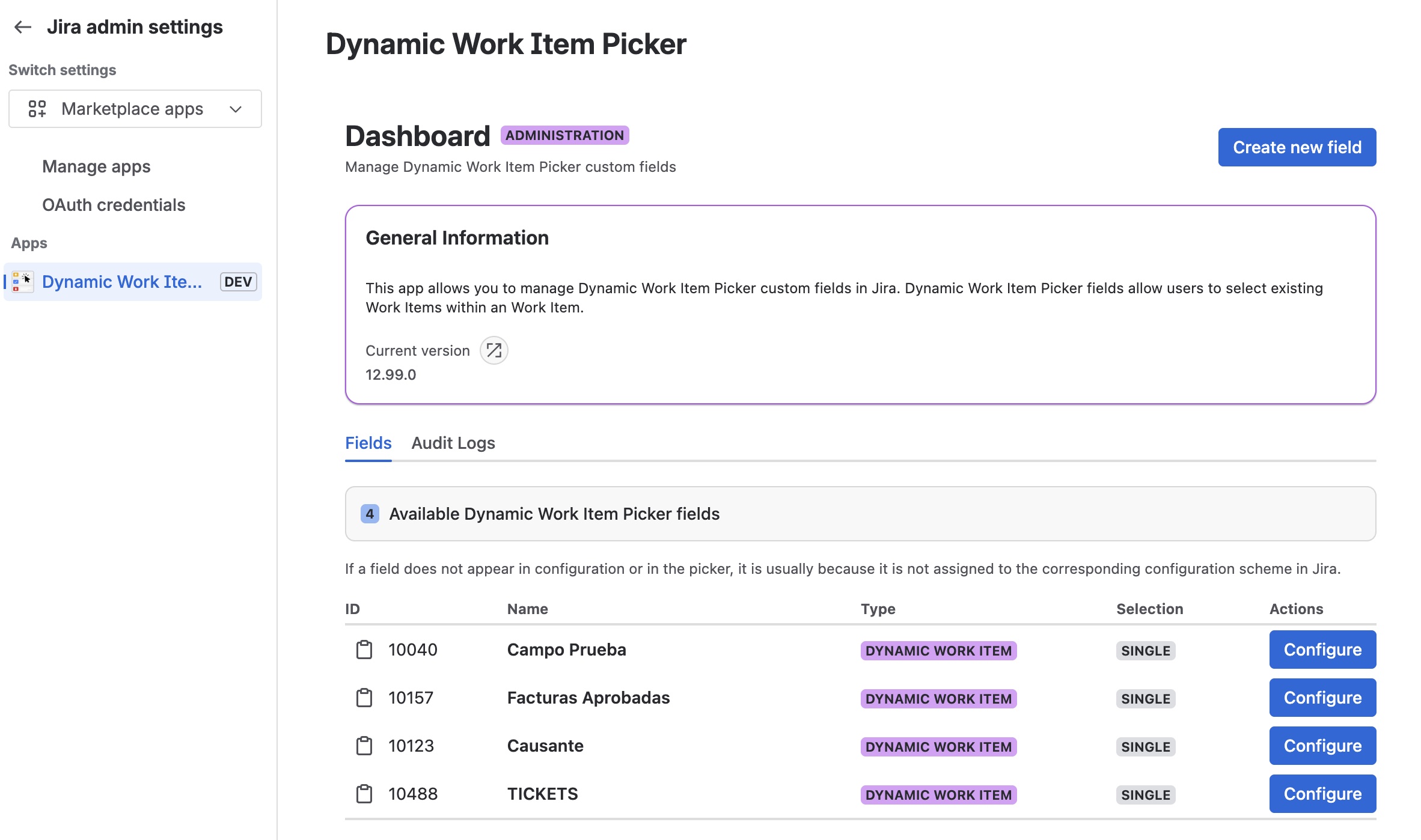
As of version 5.8.0, you can also access the dashboard from the Apps sidebar in Jira:
- In the Jira left sidebar, click Apps.
- Select Dynamic Work Item Picker from the list.
- The same administration dashboard will open.
| Access point | How to get there |
|---|---|
| Jira Settings | Settings (⚙️) → Apps → Dynamic Work Item Picker |
| Connected Apps | Connected Apps → Dynamic Work Item Picker → Configure |
| Apps sidebar (new) | Left sidebar → Apps → Dynamic Work Item Picker |
Understanding the Dashboard
The dashboard presents a list of all Dynamic Work Item Picker Field type fields you have created in your Jira instance.
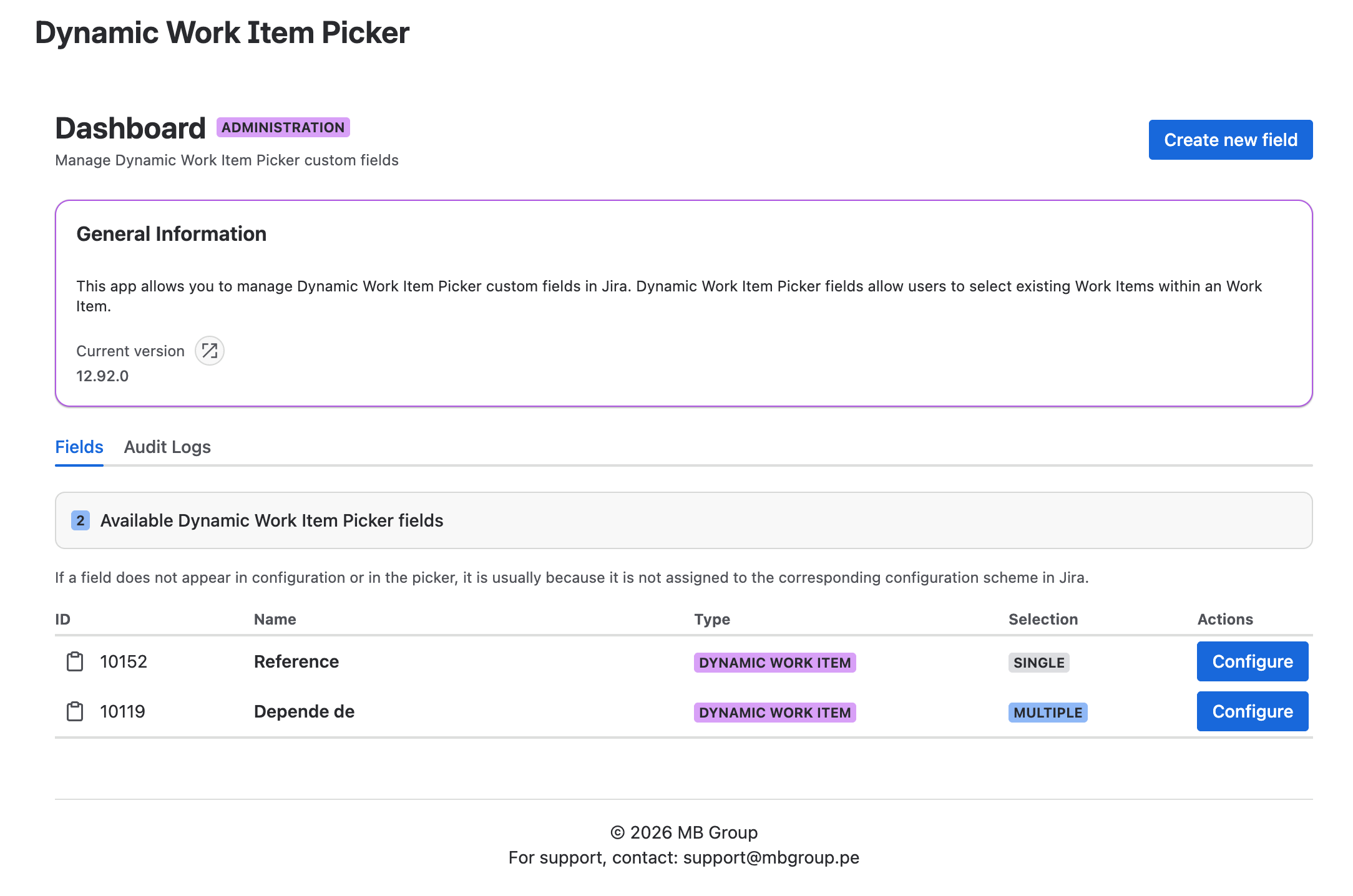
The table contains the following columns:
- ID: The unique identifier of the custom field.
- Name: The name you gave the field when you created it.
- Type: The field type, which will always be Dynamic Work Item Picker Field.
- Selection: Indicates the configured selection mode for the field.
- SINGLE: Single selection, shown with a gray (
default) lozenge. - MULTIPLE: Multiple selection, shown with a blue (
inprogress) lozenge and bold text.
- SINGLE: Single selection, shown with a gray (
- Actions: Contains the operations you can perform on the field.
- Configure: A shortcut that takes you to the field configuration page, the same one you would find in the custom fields section of Jira.
Why use the dashboard?
- Centralized visibility: You don't need to search through all your custom fields in the Jira settings. All your Dynamic Work Item Picker fields are in a single view.
- Quick access: Save time when configuring your fields, as you can jump directly to the configuration from this table.
- Simplified management: It makes administration easier as your use of Dynamic Work Item Picker grows.